


Programming a light timing switch for your daily schedule is easier than you might think. You just set the times you want your lights to turn on and off, and let the switch handle the rest. This simple upgrade brings real convenience to your life and helps cut down on wasted electricity. Many people who use timer switches save about 172.46 kWh and $18.72 each year. You get more control over your home lighting, and you save money, too.
Key Takeaways
Programming a light timing switch can save you money and energy. Many users save about 172.46 kWh and $18.72 each year.
Choose the right type of timer switch for your needs. Digital switches offer more control, while mechanical switches are simpler and cheaper.
Follow simple steps to program your timer switch. Set the current time, choose on/off times, and test your setup to ensure it works.
Adjust your light schedules based on daylight and seasons. This helps save energy and keeps your home comfortable.
Consider smart home integration for added convenience. Control your lights from your phone and automate them for safety and energy savings.
Light Timing Switch Types

When you look for a light timing switch, you will see a few main types. Each type works in its own way. It helps to know about them before you choose one for your home.
|
Type of Timer Switch |
Description |
|---|---|
|
Digital time switches |
You use a digital screen to set exact times and many on/off cycles. |
|
Programmable time switches |
You can make different schedules for weekdays and weekends. This helps you save energy. |
|
Astronomical time switches |
These change with sunrise and sunset. They work well for outdoor lights. |
|
Countdown time switches |
You set a timer to turn off after a set time. This is good for rooms you do not use much. |
|
Random time switches |
These turn lights on and off at random times. This makes it look like someone is home. |
Digital Switches
Digital switches let you control your lights in many ways. You can pick the exact time for lights to turn on or off. Some models let you set a different plan for each day. Here is what you get with a digital light timing switch:
You use a preset plan to control your lights.
You get more choices and better control than with a mechanical timer.
You can pick in-wall, plug-in, or smart timer switches.
Some digital switches let you dim your lights to set the mood.
Brands like Intermatic, Legrand, and Honeywell have digital switches that make daily plans simple.
Tip: If you want to use your phone to control your lights, pick a smart digital switch.
Mechanical Switches
Mechanical switches use dials or pins. You set the time, then push down tabs or pins for when you want lights on or off. These switches are simple and do not need a hard setup.
|
Advantages of Mechanical Timer Switches |
Disadvantages of Mechanical Timer Switches |
|---|---|
|
Cheap, often less than $10 |
Not very exact-usually only 15- or 30-minute settings |
|
Strong and last a long time |
Fewer features, no remote control |
|
Simple to use, manual operation |
Can be big or noisy |
|
Use little energy, about 1 watt per hour |
May not work well in very hot or cold places |
Key Differences
You may wonder which light timing switch is best for you. Digital switches give you more choices and better control. Mechanical switches cost less and are good if you want something easy. If you want to save energy and have more control, pick digital. If you want something simple, mechanical switches work fine.
Programming Light Timing Switch
Setting up your light timing switch can feel like a small project, but you can do it in just a few minutes. You only need to follow the right steps for your type of timer. Let's walk through both digital and mechanical options so you can get your lights working on your schedule.
Digital Programming Steps
Digital timer switches give you lots of control. You can set exact times, pick different days, and even adjust for daylight savings. Here's how you can program a digital light timing switch:
Set the Current Time and Date
Find the "Clock" or "Set" button. Hold it down until the display flashes. Use the arrow buttons to set the current hour, minute, and date. Make sure you pick AM or PM if your switch uses it.
Choose the Program Mode
Press the "Program" or "Prog" button. This lets you set when your lights turn on and off.
Enter On and Off Times
Use the arrow keys to pick the time you want your lights to turn on. Press "Enter" or "OK." Then, set the time you want them to turn off. Some switches let you set more than one on/off time each day.
Pick the Days
Some digital switches let you choose which days the program runs. You can set one schedule for weekdays and another for weekends.
Save and Exit
Press the "Clock" or "Exit" button to save your settings. Your light timing switch will now follow your plan.
Test the Switch
Press the "Manual" or "Override" button to check if the lights turn on and off at the right times. If something doesn't work, go back and check your settings.
💡 Tip: If your digital timer has a backup battery, make sure it works. This keeps your settings safe during a power outage.
Mechanical Programming Steps
Mechanical timer switches use a dial and pins or tabs. They are simple and don't need a screen. Here's how you can set up a mechanical light timing switch:
Set the Current Time
Turn the dial until the arrow points to the current time. Make sure you match AM and PM if your timer shows them.
Set On and Off Times
Find the small pins or tabs around the dial. Push them down for the times you want your lights to turn on. Leave them up for the times you want the lights off. Some timers use removable pins that you insert at the right times.
Plug In the Timer
Plug your light into the timer switch. Then, plug the timer into the wall outlet.
Test the Timer
Turn the dial slowly and watch when the light turns on and off. This helps you see if you set the times right.
🛠️ Note: If your timer has a manual override switch, you can use it to turn the light on or off without changing your schedule.
A light timing switch, whether digital or mechanical, can make your daily routine easier. You just need to follow these steps and test your setup. If you want more features, digital switches are the way to go. If you like simple tools, mechanical switches work great.
Troubleshooting
Even when you follow all the steps, you might run into problems with your light timing switch. Don't worry! You can fix most issues with a few simple checks. Let's look at some common problems and how you can solve them.
Timer Not Working
If your timer does not turn the lights on or off, start with these steps:
Check if the timer is plugged in all the way.
Make sure the light bulb works. Try it in another lamp.
Look at the settings. Did you set the right time for on and off?
For digital timers, check if the display shows the correct time.
For mechanical timers, see if the pins or tabs are in the right spots.
Tip: Test your timer after you program it. Turn the dial or use the manual button to see if the light responds.
Resetting
Sometimes, your timer needs a fresh start. You can reset it and set it up again.
For digital timers, look for a small reset button. Press it with a pen tip.
For mechanical timers, unplug the timer and plug it back in.
After resetting, set the current time and your on/off schedule again.
A reset can fix strange glitches or if the timer gets stuck.
Power Outages
Power outages can mess up your timer's settings. Here's what you can do:
|
Timer Type |
What Happens After Outage |
What You Should Do |
|---|---|---|
|
Digital |
May lose settings |
Check and reprogram timer |
|
Mechanical |
Keeps settings |
Just set the current time |
If your digital timer has a backup battery, check if it still works. Replace the battery if needed.
Note: Always test your light timing switch after a power outage to make sure it follows your schedule.
Daily Scheduling Tips
Adjust for Daylight
You want your lights to match the natural light outside. This helps you save energy and keeps your home comfortable. Start by looking at how much sunlight each room gets during the day. You can do a quick lighting audit. Walk through your home and see which lights stay on when they do not need to. Change your schedule as the seasons change. In summer, you might need your lights on later in the evening. In winter, you may want them on earlier. If your timer switch allows, set different schedules for weekdays and weekends. This way, you only use lights when you need them.
Tip: Ask your family for feedback. They can help you spot times when lights are on but not needed.
Smart Home Integration
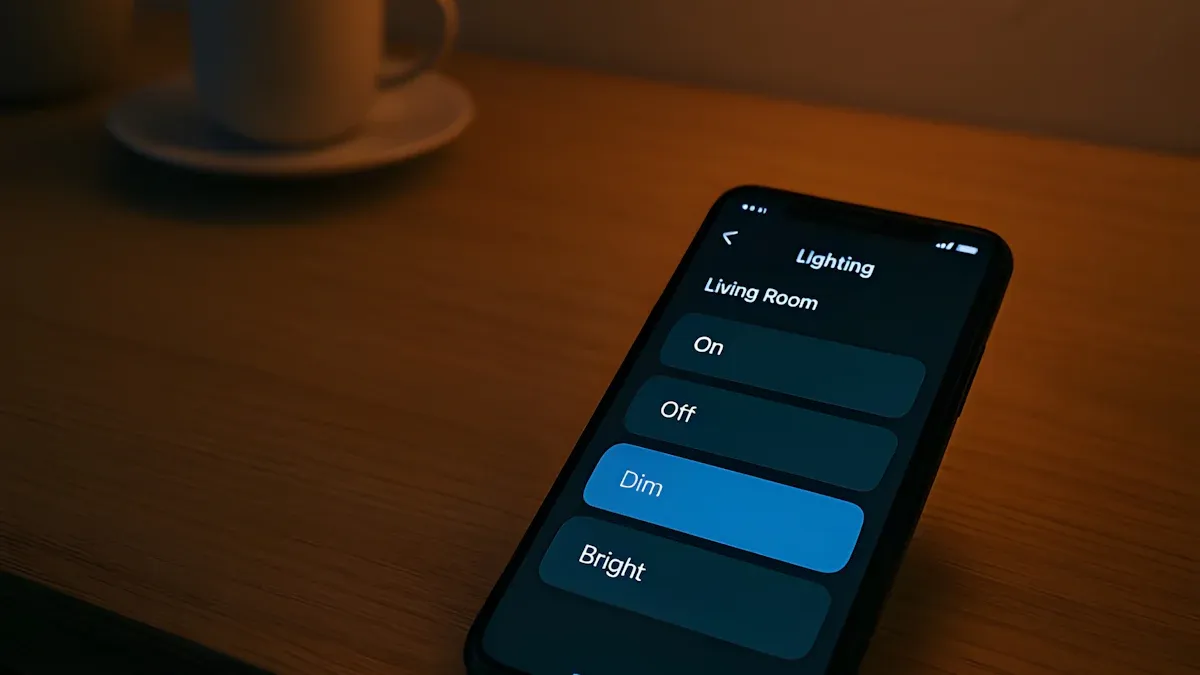
Connecting your light timing switch to a smart home system makes life easier. You can control your lights from your phone or with your voice. This hands-free setup means you do not have to remember to flip a switch. Smart systems let you set up automatic lighting for safety and security. For example, you can program lights to turn on at sunset and off at bedtime. This helps keep your home safe and can even make it look like someone is home when you are away. Smart switches also help you lower your carbon footprint by using less energy.
You get more convenience with hands-free control.
Automatic lighting keeps your home safe and secure.
Smart upgrades help you save energy and protect the environment.
Energy Efficiency
You can save money and energy with a few simple tricks. Program your lights to turn on only when you need them. For outdoor lights, set them to turn on at dusk and off at dawn. In offices or workspaces, keep lights on only during working hours. Use custom schedules for special events or routines. When you connect your timer to a smart home system, you get even more control. This helps you manage your energy use and keeps your bills low.
Automate lights to use them only when needed.
Set outdoor lights for safety and savings.
Use smart controls for better energy management.
You now know how to program a light timing switch for your daily routine. Set the current time, pick your on and off times, and test your setup. Daily scheduling saves energy and makes life easier. Try different settings to see what works best for you. Take charge of your home lighting and enjoy the comfort and savings.
FAQ
How do you know if your timer switch is working?
You can test your timer by setting a short on/off cycle. Watch your light. If it turns on and off at the right times, your timer works. If not, check your settings or try resetting the timer.
Can you use a timer switch with LED bulbs?
Yes, most timer switches work with LED bulbs. Make sure your timer says it supports LEDs. Some older mechanical timers may not work well with all LED lights.
What should you do if your timer switch loses power?
If your timer loses power, check if it has a backup battery. Digital timers often need you to reset the time and schedule. Mechanical timers usually just need you to set the current time again.
Can you override the timer to turn lights on or off manually?
Yes! Most timer switches have a manual override button or switch. You can use this to turn your lights on or off without changing your programmed schedule.
Why does your timer switch make a clicking sound?
Mechanical timer switches often make a clicking sound when they turn lights on or off. This is normal. The sound comes from the internal gears moving the switch.